Limited Time Offer: Save up to 32% OFF now!
Seedance 2.0 on SeeGen AI

Seedance 2.0 User Guide

Learn how to use Seedance 2.0 on SeeGen AI to create cinematic videos, music videos, character animations, and product videos with text, images, audio, video, and multi-reference inputs.

This guide covers supported inputs, prompt tips, key features, common issues, and practical workflows for better AI video generation.

Seedance 2.0 example — supports text, images, and video + audio inputs
Overview

What Is Seedance 2.0?

Seedance 2.0 is a multimodal AI video generation model released by ByteDance in February 2026. Compared with traditional text-to-video models, Seedance 2.0 gives creators more control over characters, motion, rhythm, scenes, and visual style.

Seedance 2.0 Input Capabilities and Limits
Image Input
Up to 9 images. Size: less than 30 MB.
Image Formats
jpeg, png, webp, bmp, tiff, gif
Video Input
Up to 3 videos, total duration 2-15 seconds. Size: less than 50 MB. Total pixel range: 409,600 (480p) to 927,408 (720p). Using reference videos may be slightly more expensive.
Video Formats
mp4, mov
Audio Input
Up to 3 files, total duration <= 15s. Size: less than 15 MB.
Audio Formats
mp3, wav
Text Input
Natural language
Generation Duration
<= 15s, selectable between 4-15s
Audio Output
Built-in sound effects / background music
Interaction Limits
The total limit for mixed input is 12 files. Priority should be given to materials that significantly impact visual composition or rhythm.
Prompt Guide

How to Write a Good Seedance 2.0 Prompt

A good Seedance 2.0 prompt should clearly describe what you want to see, how the subject should move, and what style the final video should have.

01

Subject

02

Action

03

Environment

04

Lighting

05

Camera Movement

06

Visual Style

07

Quality

08

Constraints

Subject and action are required, while the other elements can be added based on your needs. For longer prompts, add a simple timeline to make action and camera movement clearer.

Example Prompt
Create a 10-second cinematic realistic video.

Subject: A young man @Image1 holding a small bouquet of flowers.

[0s-2s] At golden hour, in a lively outdoor street market, start with a close-up of his hand holding the bouquet. Warm sunlight, soft shadows, and glowing dust particles create a warm and hopeful mood.

[2s-5s] The camera smoothly pulls back to reveal him walking through the crowd. Fabric awnings ripple in the breeze, hanging lights sway gently, and people move naturally on both sides.

[5s-7s] He glances to his left and notices someone off-camera. His expression changes from neutral to surprised and happy.

[7s-10s] He begins walking faster, weaving gently through the crowd. The camera tracks backward in front of him, then shifts into a slight side arc while keeping him as the clear subject. In the background, a child runs past, a vendor hands fruit to a customer, and a bicycle crosses the far end of the frame.

Visual style: cinematic realism. Image quality: sharp focus, realistic textures, shallow depth of field, smooth motion, stable face, clean hand details, consistent anatomy.

Constraints: no text, no subtitles, no watermark, no face distortion, no extra fingers, no flickering, no identity drift, no sudden style changes.
Prompt example result
Features & Use Cases

Seedance 2.0 Features & Use Cases

Seedance 2.0 supports different video generation workflows, from simple text-to-video creation to multi-reference video generation.

01
None

Text to Video

Text to Video allows you to generate a video from a text prompt only. You describe the subject, action, scene, camera movement, lighting, and style, and Seedance 2.0 creates the video based on your prompt.

Best For

Cinematic short clipsStory scenesProduct conceptsSocial media videosCreative visual ideas

Example Prompt

Style: Hollywood Professional Racing Movie (Le Mans Style), Cinematic Night, Rain, High Stakes Sport. [00-05s] Shot 1: The Veteran (Interior/Close-up). Rain lashes the windshield of a high-tech race car on a track. The Veteran driver looks over, calm and focused. Dashboard lights reflect on his visor. Dialogue Cue: He gives a subtle nod and mouths "Let's go." [05-10s] Shot 2: The Challenger (Interior/Close-up). Cut to the rival car next to him. The younger driver grips the wheel tight, breathing heavily. Eyes wide with adrenaline. Dialogue Cue: He whispers "Focus" to himself. [10-15s] Shot 3: The Green Light (Wide Action). The starting lights turn green. Both cars accelerate in perfect sync on the wet asphalt. Water sprays massively into the camera lens. Motion blur turns the stadium lights into long streaks of color.
No reference material needed
Output
02
1 image

Image to Video

Image to Video uses an uploaded image as the main visual reference. Seedance 2.0 can animate the image and turn it into a moving video based on your prompt.

Best For

Character animationPortrait-to-videoProduct animationScene animationTurning still images into cinematic clips

Example Prompt

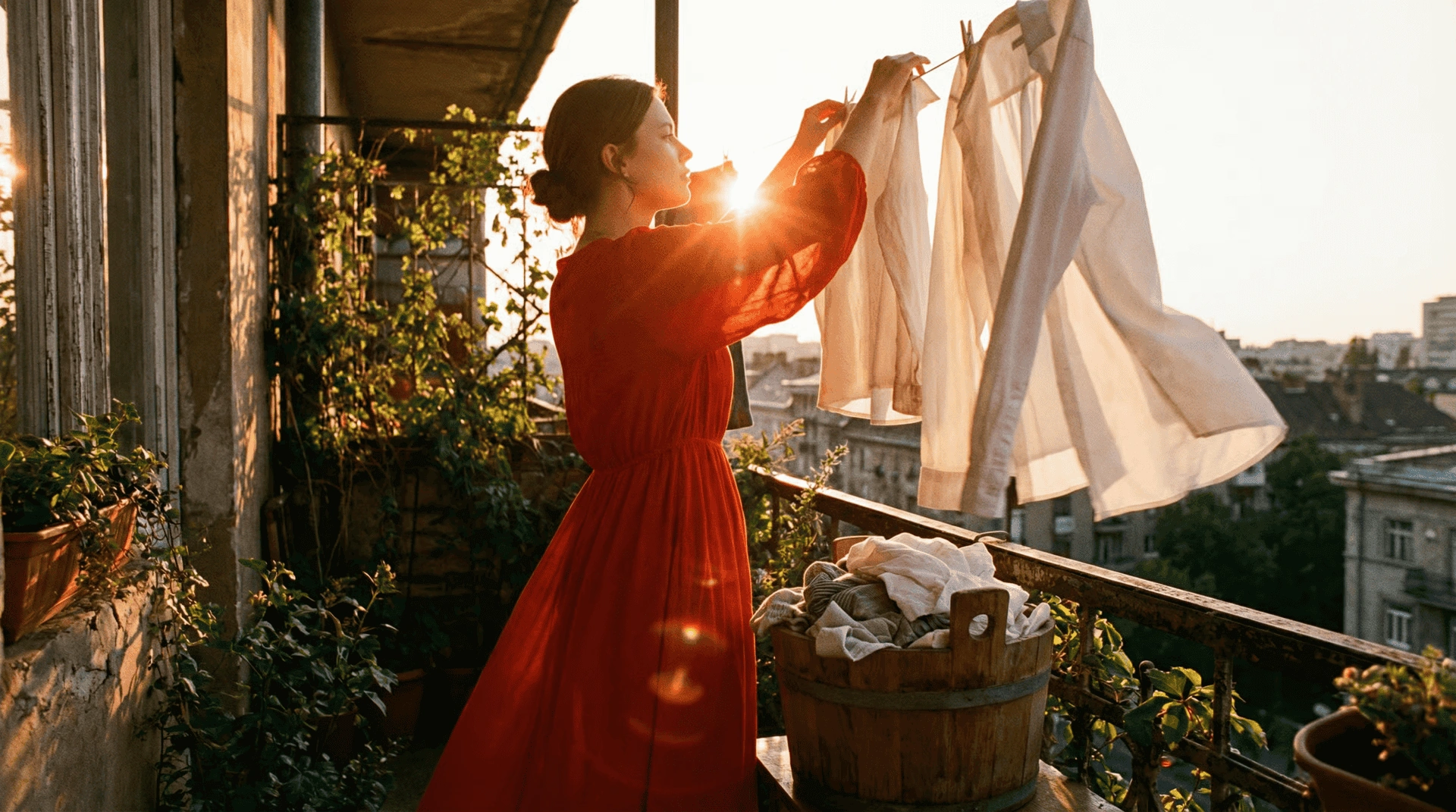
The girl is elegantly hanging clothes to dry. After finishing one piece, she takes another item from the bucket and shakes it out forcefully.

Image reference
Image reference
Output
03
2 images

First & Last Frame to Video

First & Last Frame to Video uses two images to control the beginning and ending of a video. Seedance 2.0 generates the motion between the two frames.

Best For

Scene transitionsCharacter transformationProduct revealBefore-and-after videosControlled start and end shots

Example Prompt

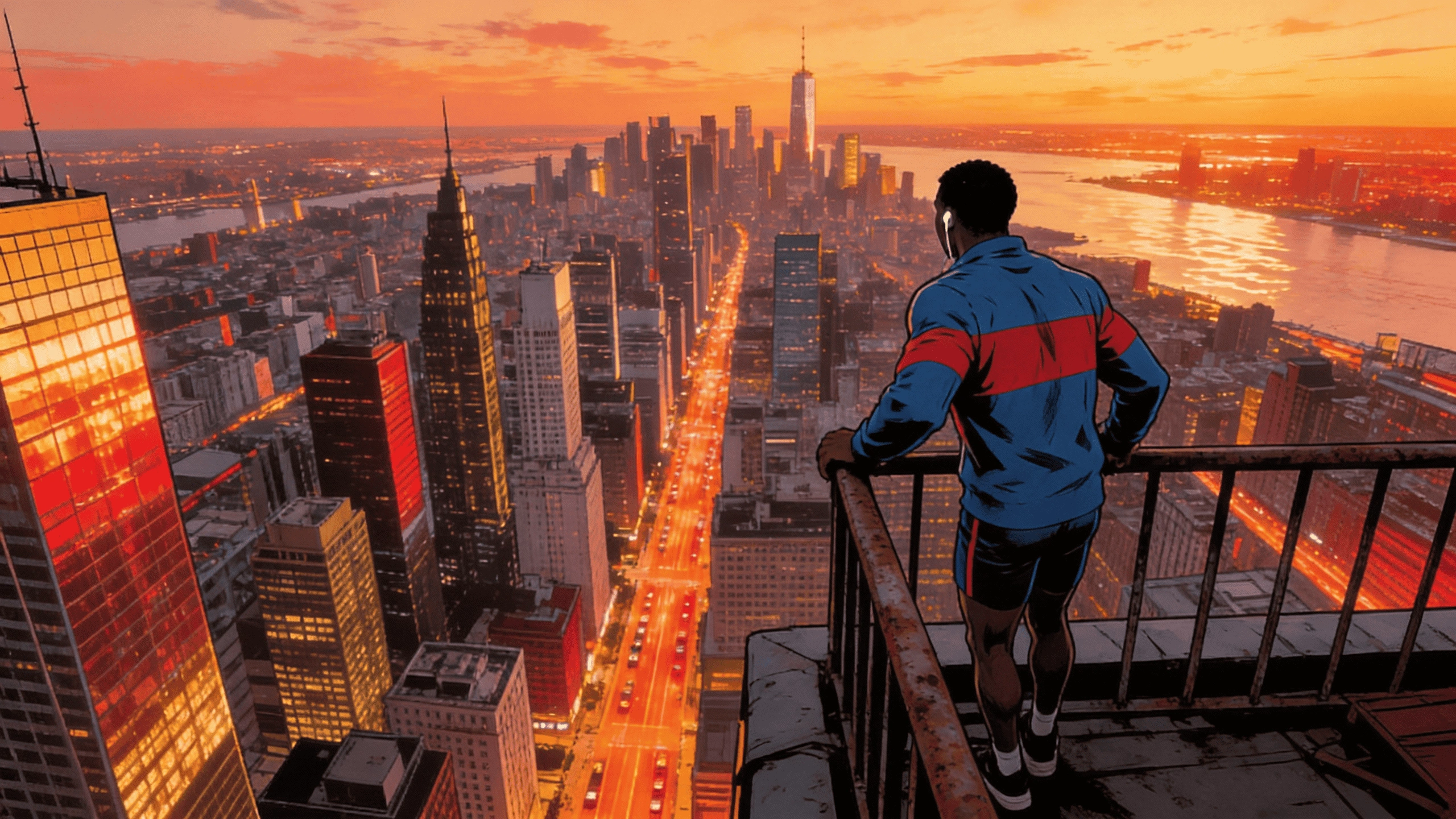
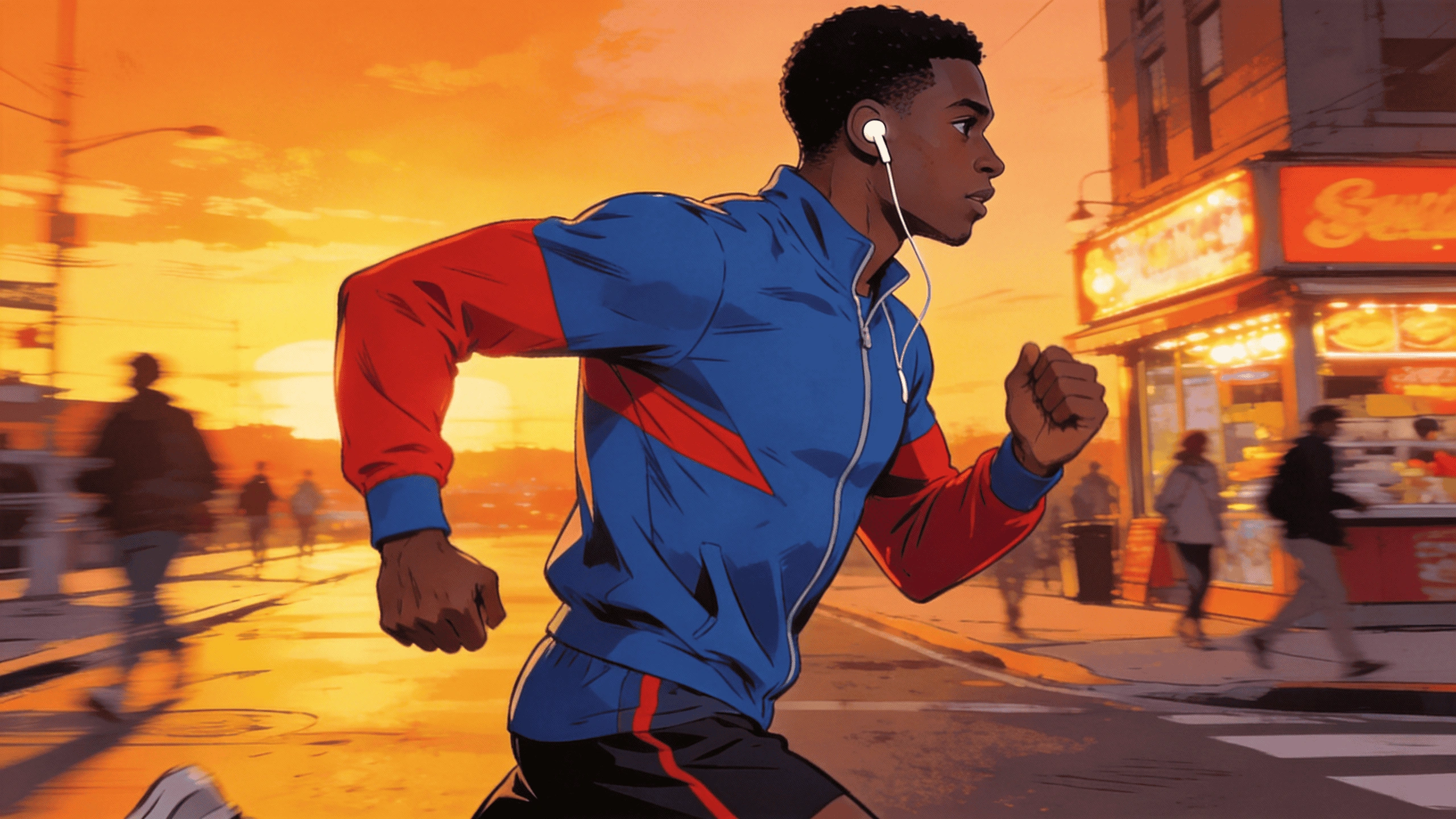
@Image1 as the first frame, @Image2 as the last frame. A continuous tracking shot seamlessly follows the runner from the street, up the stairs, through the corridor, onto the rooftop, and finally overlooking the city.

First frame
First frame
Last frame
Last frame
Output
04
3 images

Multi-Reference (Omni Reference)

Multi-Reference, sometimes also called Omni Reference, allows you to use multiple reference materials together, such as images, videos, audio files, and text prompts.

To make Seedance 2.0 follow your audio reference more closely, try using a black screen video instead of direct audio input. This can improve rhythm and timing consistency. Read the full guide.

Best For

Character + outfit + scene referenceImage + motion video referenceAudio-driven MV generationComplex video generation with multiple materialsMore controlled visual direction

Example Prompt

Use @image1 as the first frame. The shot zooms out through the airplane window, revealing clouds slowly drifting into view. One of the clouds, decorated with colorful candy-like dots, remains centered in the frame and gradually transforms into the ice cream from @image2. The camera then pulls back into the airplane cabin, where @image3, seated by the window, reaches out and takes the ice cream from outside. She takes a bite, gets cream all over her mouth, and her face lights up with a sweet, joyful smile.

Reference image 1
Reference image 1
Reference image 2
Reference image 2
Reference image 3
Reference image 3
Output
05
1 video

Video Extend

On SeeGen AI, Video Extend can be created through the Multi-Reference workflow. You can upload the previous video clip as a reference and ask Seedance 2.0 to continue the scene.

Best For

Continuing a previous shotCreating longer story sequencesExtending an MV or cinematic clipKeeping a similar scene style

Example Prompt

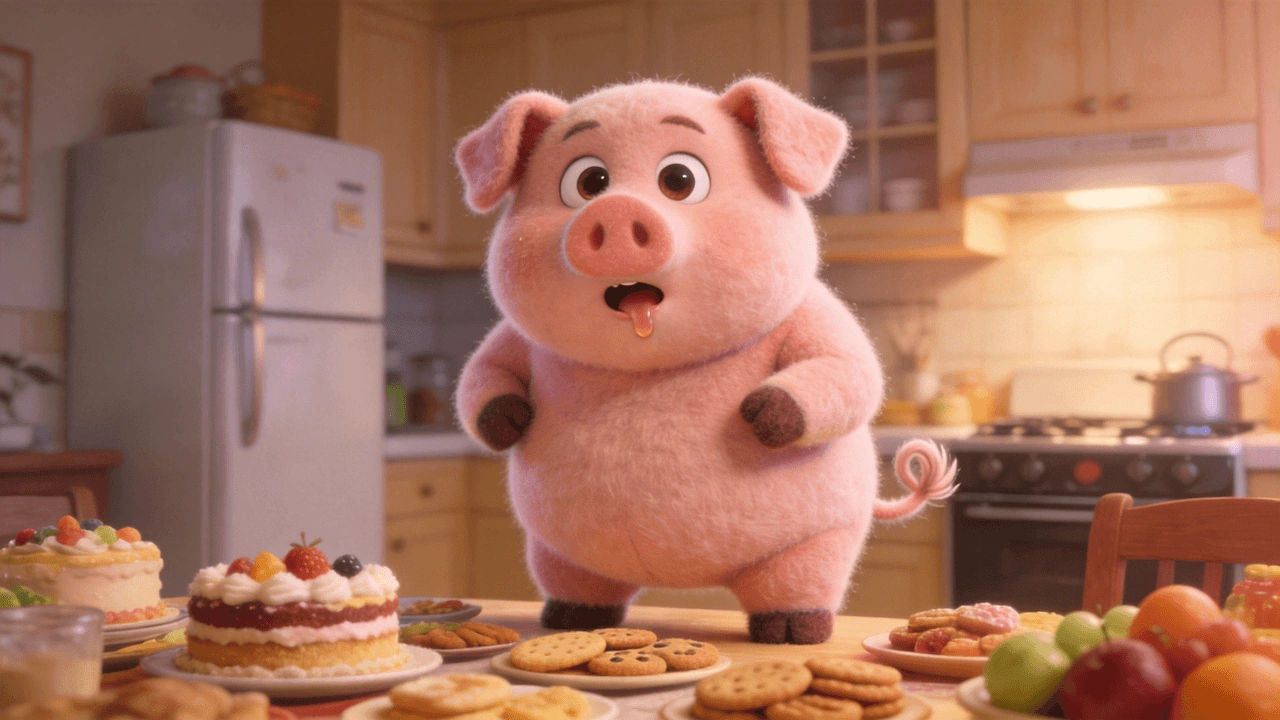
Use the dog in @video1 as Subject 1. Extend the original video to 10 seconds and add the following continuation: 0-5s show the original scene from @video1; 6-8s show Subject 1's round chubby body slowly rolling down the slope; 9-10s show Subject 1 rolling to the bottom of the hill and getting stuck in the doorway of a small wooden cabin. The overall tone should be bright and soft, with a relaxed rhythm and a touch of humor.

Video reference
Output
06
1 video + 1 image

Video Edit

Video Edit can also be created through the Multi-Reference workflow. Upload the original video as a reference, then describe what you want to change.

Best For

Changing the backgroundChanging the outfitAdjusting the visual styleModifying the atmosphereRecreating a video with new reference materials

Example Prompt

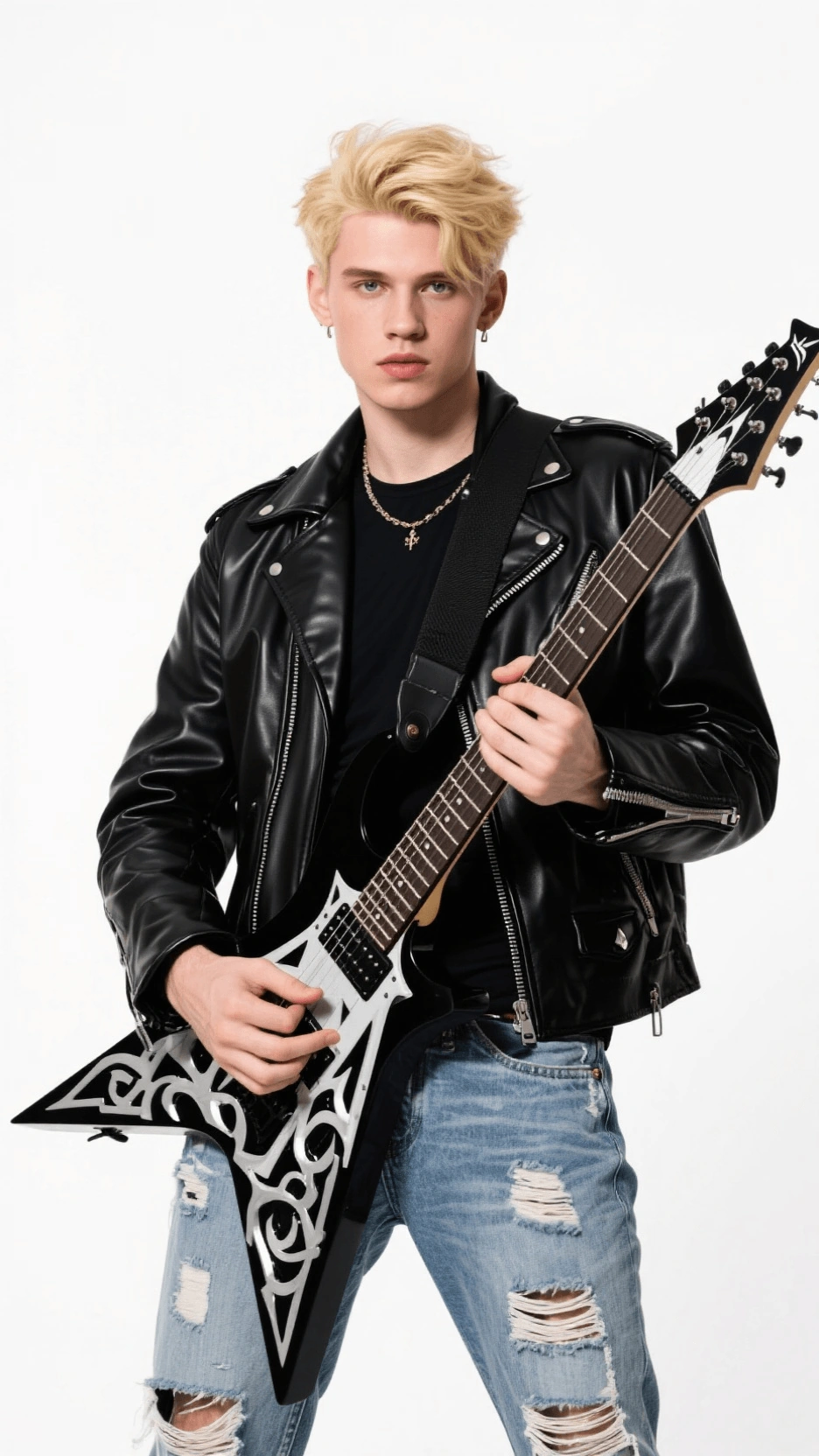
Replace the female lead singer in @video1 with the male lead singer from @image1. The motion should closely follow the original video. Do not use any cuts or scene transitions. The band is performing and singing the music.

Original video
Image reference
Image reference
Output
How To Use

How to Use Seedance 2.0 on SeeGen AI

1

Upload Reference Files

Upload images, videos, or audio files if you want Seedance 2.0 to follow specific characters, motion, scenes, or sound. For text-to-video, you can skip this step.

2

Write Your Prompt

If you upload references, use @mentions to tell Seedance 2.0 how to use each file, such as character reference, motion reference, or original video reference.

3

Generate and Download

Choose your generation settings, such as duration, aspect ratio, resolution, seed, and whether to generate audio. Then click generate. After the video is ready, preview the result and download it.

Important Usage Notes

Seedance 2.0 Important Usage Notes

Real Human References

Seedance 2.0 may have limitations when using real human faces as reference materials. To address this issue, SeeGen AI has introduced an asset review mechanism to support real human faces as references.

On SeeGen AI, approved face assets can be used as references after passing the official review process. If the generated result contains copyrighted, restricted, or sensitive content, the generation may still be blocked. In that case, the credits will be refunded.

SeeGen AI Upload Guide

Audio Reference Consistency

Seedance 2.0 supports audio reference, but direct audio input may not always follow the original rhythm and timing closely. For better consistency, you can convert the audio into a black screen video and use it as a video reference instead.

Seedance 2.0 Audio Guide
FAQs

FAQs about Seedance 2.0 User Guide

What Can I Create with Seedance 2.0?+
You can create cinematic videos, character animations, music videos, product videos, social media clips, and video editing-style outputs with Seedance 2.0.
What is Multi-Reference / Omni Reference?+
Multi-Reference, sometimes also called Omni Reference, lets you use multiple reference materials together, such as images, videos, audio files, and text prompts. This helps Seedance 2.0 better understand the character, motion, scene, style, or audio you want to follow.
How Does @mentions Work?+
When you upload multiple reference files, you can use @mentions in your prompt to tell Seedance 2.0 how each file should be used. For example: Use @image1 as the main character reference and @video1 as the motion reference.
What is Seed in Seedance 2.0?+
Seed is a number used to control randomness. Using the same seed with the same prompt and same reference files can help generate more similar results. If you leave it empty, the result will be random.
Can I Use Seedance 2.0 to Extend a Video?+
Yes. You can upload a previous video clip as a reference and ask Seedance 2.0 to continue the same scene through the Multi-Reference workflow.
Can I use Seedance 2.0 to edit a video?+
Yes. You can upload an original video as a reference and describe what you want to change, such as the background, style, outfit, motion, or atmosphere.
How can I get better Seedance 2.0 results?+
Use clear reference materials, write specific prompts, use @mentions when working with multiple references, keep the subject and action clear, and reuse a good seed when you want similar outputs.

Create with Seedance 2.0 on SeeGen AI.

Start with a prompt, add the references that matter, and generate cinematic AI video with stronger control over characters, motion, style, and sound.